
Custom Tag Template for Google Tag Manager
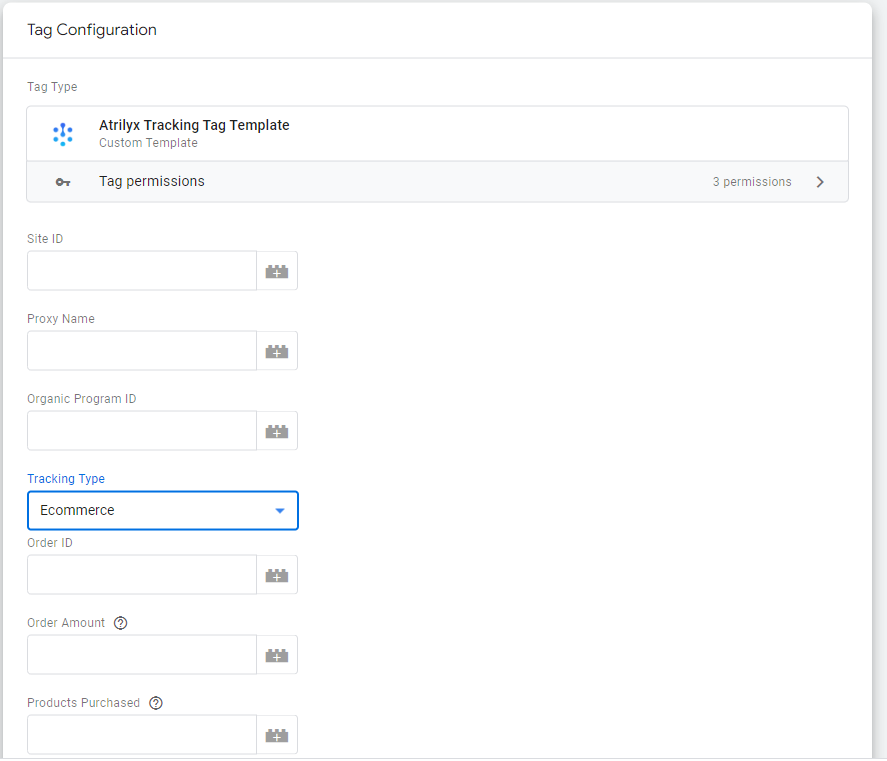
This is the Atrilyx Pixel custom tag template for the Google Tag Manager’s community template gallery. This template will implement the Atrilyx pixel on your website. You can use it to load the pixel across the site and configure the goals and custom events you wish to see reported your Atrilyx dashboard. The template is equipped to handle all functionality available to you via the dashboard, including setting custom dimensions for your goals and events, product or category view metrics, site search events and more.
How to use the Atrilyx Pixel Custom tag template via the Google Tag Manager (GTM):
Sign in to the Google Tag Manager.
Click the Templates tab in the left side navigation bar.
Click the Search Gallery button in the Tag Templates slot.
In the search box, search for Atrilyx.
Select the Arilyx template, and then click Add to workspace.
Agree to the permissions required by the custom template.
Your site ID, proxy name and organic ID (and other tag configuration variables) will be provided to you during the onboarding.
Follow the Instructions in tag setup guide to create the tags and triggers required.

Search For Atrilyx
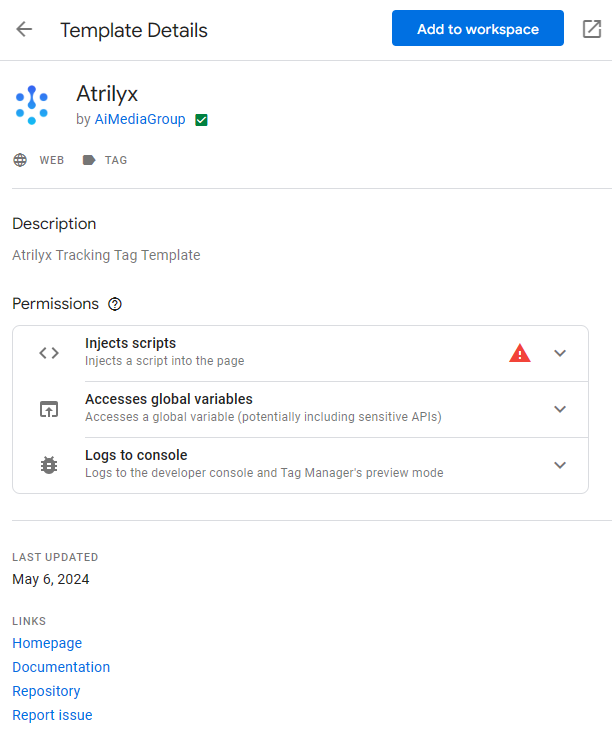
Click Add to Workspace
Additional Resources: